

Windows 10 upgrade security
Urgent Warning: Windows 10 Users Must Upgrade Before October 2025 to Avoid Security Risks
Windows 10 upgrade security is a growing concern as Windows 10 support comes to an end on October 14, 2025. Users who continue to use Windows 10 after this deadline will face significant security risks. Without critical updates, outdated systems become easy targets for cybercriminals. To safeguard your data and devices, upgrading to a newer version, such as Windows 11, is essential. This article explains why upgrading is crucial for maintaining system security and how to do it before it's too late.
Why You Need to Upgrade Before Support Ends
With the end of support for Windows 10 rapidly approaching, users need to understand the importance of upgrading. Once support ends, Microsoft will no longer release security patches or software updates. As a result, any vulnerabilities in the operating system will remain unaddressed, putting users at risk of cyberattacks.
The Risks of Using Windows 10 After October 2025
- No More Security Updates: Without regular updates, your system will be vulnerable to attacks. Hackers often target unsupported systems, as they are easy to breach.
- Increased Malware and Ransomware Threats: Unsupported systems become prime targets for cybercriminals who exploit unpatched security flaws, potentially causing catastrophic damage.
- Data Breaches and Privacy Concerns: The absence of updates leaves your data exposed to threats, leading to potential breaches and data loss.
How Upgrading to Windows 11 Enhances Security
Upgrading to Windows 11 before the October 2025 deadline ensures that your system benefits from stronger security measures. Windows 11 comes with the following advantages:
- Advanced Security Features: Windows 11 includes TPM 2.0, BitLocker, and Virtualization-Based Security (VBS), which help protect against malware and unauthorized access.
- Ongoing Support and Updates: Windows 11 will continue receiving regular security patches, ensuring your system remains protected from emerging threats.
- Improved Performance: Windows 11 enhances performance, even on older hardware, helping your system run efficiently and securely.
- Better Compatibility with Modern Apps: Newer Windows versions support the latest applications, ensuring smooth integration with modern software and technologies.
Steps to Upgrade from Windows 10 to Windows 11
Upgrading to Windows 11 is simple. Here’s how you can make the transition:
- Check Compatibility: Use Microsoft’s PC Health Check tool to see if your system meets the requirements for Windows 11.
- Back Up Your Files: Save important data to an external drive or cloud storage to protect against data loss during the upgrade process.
- Install Windows 11: Go to Windows Update in Settings to check for the latest updates and follow the steps to upgrade.
- Consult an Expert: If you're unsure about the upgrade process, an IT professional can help guide you through the transition.
Don’t Wait: Upgrade Now to Stay Protected
The clock is ticking. With less than two years left, now is the time to act. Continuing to use Windows 10 after October 14, 2025, exposes your system to security risks. Upgrading to Windows 11 ensures you continue receiving security updates and improves your system’s performance. Don’t wait—upgrade today to protect your data and devices.
References:
- "Windows 10 End of Service and Security Updates," Microsoft Support
- "Why You Should Upgrade to Windows 11," Microsoft Official Blog
- "Security Risks of Running an Outdated Operating System," CSO

How to Set Up a PoE Security Camera System: A Complete Guide
How to Set Up a PoE Security Camera System: A Complete Guide
A PoE security camera system is an efficient solution for home and office surveillance. By combining power and data transmission into a single cable, it simplifies installation and eliminates the need for additional power sources. In this guide, I’ll explain how to set up a PoE security camera system using the Amcrest NV4108-E NVR and Amcrest 5MP or 8MP (4K) PoE Turret cameras.
When I first purchased my system, I was told each camera needed a direct connection to the NVR, known as a “home run” setup. This method requires running cables from various locations to the NVR, which can be tedious and costly.

Instead, I chose to use a PoE switch to streamline the installation process, saving both time and effort.

How to Set Up:
- Equipment You’ll Need:
- Amcrest NV4108-E NVR
- Amcrest 5MP or 8MP (4K) PoE Turret cameras
- PoE switch
- Unmanaged network switch
- Connect the Devices:
- Attach the NVR to your unmanaged network switch.
- Connect all cameras to the PoE switch using Ethernet cables.
- Power and Configure:
- Turn on the PoE switch, NVR, and cameras.
- Wait for the cameras to automatically appear on your NVR’s monitor.
- Monitor and Access:
- View live footage on a connected monitor.
- Use the free mobile app for remote access and alerts.
Key Benefits
- Simplified installation with fewer cables.
- Greater flexibility in camera placement.
- Remote access for real-time monitoring.
Using a PoE security camera system allows you to build a scalable and reliable surveillance network without the hassle of complex wiring.
Conclusion
Setting up a PoE security camera system is simple and effective, especially with the help of a PoE switch. By following these steps, you can enjoy the benefits of streamlined installation, flexible camera placement, and remote monitoring. Whether for your home or office, this system is an excellent choice for modern surveillance needs.

Home Computer Security Practice
Home Computer Security Practice: Essential Tips to Protect Your Personal Data
Why Home Computer Security Practice is Essential and How to Strengthen It
In today’s connected world, home computer security is more important than ever. Our personal devices store sensitive information such as passwords, financial details, and private communications, making them prime targets for cybercriminals. Without proper protection, you could be at risk of identity theft, data breaches, and malware attacks. Strengthening home computer security is key to safeguarding your data and ensuring your privacy in the digital age.
In this guide, we’ll explore practical and effective steps to improve your home computer security. Whether you’re a casual user or a tech-savvy individual, these tips will help you protect your personal information and keep your devices safe from online threats.
1. Install Trusted Antivirus Software
The first step in improving home computer security is installing reliable antivirus software. Antivirus programs help detect and remove harmful malware, viruses, and ransomware before they can infect your system. Make sure to choose well-reviewed antivirus software and keep it updated regularly to stay protected from the latest cyber threats.
2. Create Strong and Unique Passwords
One of the simplest yet most effective ways to boost your home computer security is by using strong, unique passwords. Avoid using easily guessed passwords like “123456” or “password.” Instead, create long, complex passwords with a mix of letters, numbers, and special characters. Consider using a password manager to securely store and manage all your passwords.
3. Enable Two-Factor Authentication (2FA)
Adding an extra layer of protection to your accounts is a must for home computer security. Two-factor authentication (2FA) requires you to provide two forms of verification before gaining access to your accounts—typically your password and a code sent to your phone. This makes it much harder for hackers to breach your accounts, even if they have your password.
4. Keep Your Software Up to Date
Software updates are more than just new features—they often contain important security patches. By regularly updating your operating system, web browsers, and other applications, you ensure that any vulnerabilities are fixed. This is a crucial part of maintaining strong home computer security and staying one step ahead of potential threats.
5. Activate Your Firewall
Your computer’s firewall acts as a shield, blocking unauthorized access to your device. It’s important to ensure that your firewall is enabled, especially when you’re connected to public or unsecured networks. A properly configured firewall helps protect your system from hackers and cyberattacks, playing a critical role in home computer security.
6. Beware of Phishing Scams
Phishing scams are one of the most common ways cybercriminals try to steal your information. Be cautious when clicking on links in emails, text messages, or social media. Phishing attacks often look legitimate, but they are designed to trick you into revealing personal details or downloading harmful software. Protecting your personal data from phishing attempts is essential for strong home computer security.
7. Back Up Your Data
Regularly backing up your data is a must for protecting your information. If your computer is ever compromised by ransomware or experiences a system failure, having backups ensures you won’t lose important files. Use cloud storage or an external hard drive to store backups and make sure they are updated frequently.
8. Secure Your Wi-Fi Network
Your home Wi-Fi network is the gateway to all your connected devices, so securing it is vital for home computer security. Change the default router password, enable WPA3 encryption, and avoid using easily guessed passwords. A secure Wi-Fi network prevents unauthorized users from accessing your connection and potentially compromising your devices.
Conclusion
Strengthening home computer security is essential to protect your personal data from cyber threats and ensure your online privacy. By following these simple steps—installing antivirus software, using strong passwords, enabling two-factor authentication, keeping your software updated, activating your firewall, being cautious of phishing attacks, backing up your data, and securing your Wi-Fi network—you can significantly reduce the risk of cyberattacks.
Taking proactive measures to improve your home computer security will help you stay safe in the digital world, protecting your personal information and keeping your devices secure from hackers and other online risks.
———————————————————————————————————————————————————————–

Facebook Scam
Facebook Scam: Stay Informed and Protected from Social Media Scams
Facebook scams are becoming more sophisticated, targeting unsuspecting users to steal personal information and money. Stay informed and protected with our expert guidance on recognizing and avoiding these scams. By following our tips and insights, you can navigate the digital world with confidence and safeguard your online presence.
**Recognize Common Facebook Scams**
Understanding the types of scams on Facebook is crucial. Scammers often use phishing links, fake profiles, and deceptive ads to trick users. Learn more about [common Facebook scams](https://www.facebook.com/help/167471764612320) and how to identify and avoid them.
**Protect Your Personal Information**
Safeguarding your personal information is vital for online security. Avoid sharing sensitive details on social media, use strong passwords, and enable two-factor authentication. Get comprehensive tips on [protecting your personal information online](https://staysafeonline.org/stay-safe-online/protect-your-personal-information/).
**Stay Updated on Cybersecurity Trends**
Online threats are constantly evolving. Stay informed about the latest trends in cybersecurity to understand the risks and how to mitigate them. Follow the [latest trends in cybersecurity](https://www.cybersecurity-insiders.com/) to keep your knowledge current.
**Fortify Your Online Defenses**
Proactively securing your online presence is essential. Regularly update software, use antivirus programs, and be cautious of suspicious links and messages. Explore ways to [fortify your defenses against online threats](https://us-cert.cisa.gov/ncas/tips).
**Follow a Comprehensive Guide to Internet Safety**
For a broader understanding of how to stay safe online, consult resources that cover various aspects of internet security. Our [comprehensive guide to internet safety](https://www.consumer.ftc.gov/topics/online-security) offers valuable information to help you navigate the web securely.
Arm yourself with knowledge and become a savvy defender of your online presence. Let us be your trusted ally in the ever-changing landscape of internet safety. By staying informed and proactive, you can outsmart scammers and effectively protect your personal information.


Best Fix for Windows 10 crashing photo app in 5 second
Best Fix for Windows 10 crashing photo app in 5 second?
Best Fix for Windows 10 crashing photo app in 5 second. Not able to do anything. I tried many things such as download Microsoft fix it tools, did not work, run troubleshooter from control panel, did not work. Then tried shell:libraries command to re-create folder, did not work. App restore did not work…and so on. Finally, one thing work and I would like to share with you guys. Remove photos app and re-install it again. But you have to Remove phots app using PowerShell.
Here is the Steps:
Click on search and type PowerShell then you will see Windows PowerShell (not case sensitive)
Take mouse over it and right click on it and click on Run as Administrator.
The type this command:
Get-appxpackage Microsoft.Windows.Photos | remove-appxpackage
This command will remove the photos app
Now go to start and type store it will bring Store (Trusted Windows Store App)
click on Store and then type on search box Photos its free
Click on free and install
After completing installation open your picture. And enjoy!!
If it works for you share it to help someone else.
Enjoy! Thank you!

YouTube Channel
Vlog-YouTube
Are you looking for expert IT advice and troubleshooting tips? Look no further than the Lexington PC Clinic YouTube Channel. Whether you're a small business owner or a tech enthusiast, this channel offers a wealth of valuable content designed to help you solve common tech problems and stay ahead in the ever-evolving world of IT.
The Lexington PC Clinic YouTube Channel is your go-to resource for practical, easy-to-follow tutorials and guides. With a focus on providing actionable solutions, the channel covers a range of topics including PC repairs, system optimizations, and cybersecurity best practices. Each video is crafted to ensure that viewers not only understand the problem but also gain the knowledge to fix it themselves.
What You Can Expect from the Lexington PC Clinic YouTube Channel
- Tech Tips and Troubleshooting
The Lexington PC Clinic team shares expert tips to help you troubleshoot common technical issues with ease. From resolving software conflicts to fixing hardware malfunctions, this channel is packed with useful insights for both beginners and seasoned tech users. - Cybersecurity Guidance
As cybersecurity becomes more critical, we provides vital content to protect your data and devices. Watch the latest videos on how to safeguard your systems from cyber threats, ensuring you stay one step ahead of hackers and malicious software. - PC Maintenance and Optimization
Learn how to keep your computer running smoothly with in-depth guides on system maintenance, performance tuning, and cleanup. Regular optimization is essential for extending the life of your device, and we show you how. - Product Reviews and Recommendations
Want to buy new tech equipment but not sure where to start? our channel offers unbiased product reviews and recommendations, helping you make informed decisions when purchasing new software or hardware. - Small Business IT Solutions
Small business owners can benefit from tailored IT support on the channel. Lexington PC Clinic provides valuable advice on managing IT infrastructure, securing business networks, and optimizing productivity through tech solutions.
Why You Should Subscribe to the Lexington PC Clinic YouTube Channel
Subscribing to the Lexington PC Clinic YouTube Channel ensures you never miss a video packed with tips, solutions, and advice. With new content posted regularly, you can stay up-to-date on the latest tech trends and best practices. The channel is also a fantastic resource for small business owners looking to improve their IT systems without the need for costly professional services.
Conclusion
The Lexington PC Clinic YouTube Channel is a treasure trove of knowledge, offering practical and expert advice on everything from basic troubleshooting to advanced IT solutions. Whether you're seeking to optimize your PC, protect your devices from cyber threats, or find the best tech tools for your business, this channel is the ideal place to start. Subscribe today and take control of your tech!


Beware of Microsoft Phone Scam
Beware of Microsoft phone scam
Hi my friends be careful who you give remote access to your computer. Even if they say they are calling from Microsoft, first Microsoft will never call, even one's computer is very badly infected. Once you purchase a computer it is your responsibility to protect it from viruses, malware, hackers and so called Microsoft tech s(they are not from Microsoft) they are from MICROTOSH SOFTWARES sound like Microsoft and MICROTOSH computer support number is 855-601-0002, block this number. Beware of Microsoft phone scam.
One of my yearly clients gave them access to her computer. They locked her out of her own computer, charged her $499 and asked for more before she hung up and called me in a short time, they had already had modified her registry file. So she couldn’t do anything but call their number and let them control her pc.
I went to fix her computer and she did not pay a dime to me nor the hackers. I helped her cancel her credit card and did whatever it took to dispute her amount.
She bought a LPC (Lexington PC Clinic) yearly plan and LPC (Lexington PC Clinic) fixed everything. Her computer is now running like it was before. Beware of Microsoft phone scam.
Don't get scammed. Call us.
I did some research here is the result:
Googled MWS
MICROTOSH SOFTWARES AKA MWS PC Security
Gov Consumer information
Fake Security Scams – 2015 Edition from Webroot
Alert: Computer Repair Scam Using BBB Name
Avoid tech support phone scams From Microsoft official
PC Advisor
 |
 |
 |
|---|
hack a Chromebook
Google will pay $100K if anyone can hack a Chromebook
Hack a Chromebook, Get Rich or Hack Tryin’
Since 2010, google paid to researchers over $2,000,000 to find security vulnerabilities in Chromebook hardware and software through Google’s Security Reward Program to make google user safer. Google takes Its chrome security very seriously. Google made some changes in “hack a Chromebook” bounty reward program from $50,000 to $1000,000.
Google has offer $50,000 last year for hack a Chromebook in guest mode. There was no successful submission. So, google increase its reward to $100,000, available all year around. Not only for Chromebook, google has been paying for wide range small security vulnerabilities test.
Reward range from $500 to $1000,000.
Happy Hacking
Official Links:
 Security Blog
 Application Security
The Chromium Projects
Sources:
Google: We’ll pay $100k if you can hack a Chromebook remotely
Google says hack Chromebook, get $100K richer
Google Will Pay You $100K If You Can Hack a Chromebook
After 0 successful submissions, Google doubles top reward for hacking a Chromebook to $100,000.
Google will pay you $100,000 if you can hack a Chromebook

Add a signature
Add a signature automatically to every outgoing message in Outlook 2016
Do you get annoyed when you do not see your signature in HTML format when you reply message? Here how you set it up to
Add a signature automatically
when you click on reply or forward. It will appear as it shows up for new message.
Click on New Email

Click On Signature and drop down list will appear with your signatures

Select Signature.. you will see your name too but just click on Signatures.

Then click on drop down on Replies/Forwards: and select your name or Signature however you have save your signature.

Then click on ok

How to update Drivers on your Windows Computer
How to Update Drivers on Your Windows Computer
Keeping your computer’s drivers updated is essential for smooth performance and compatibility with the latest hardware and software. If you're asking yourself how to update drivers on your Windows computer, this guide will walk you through the safest and easiest methods.


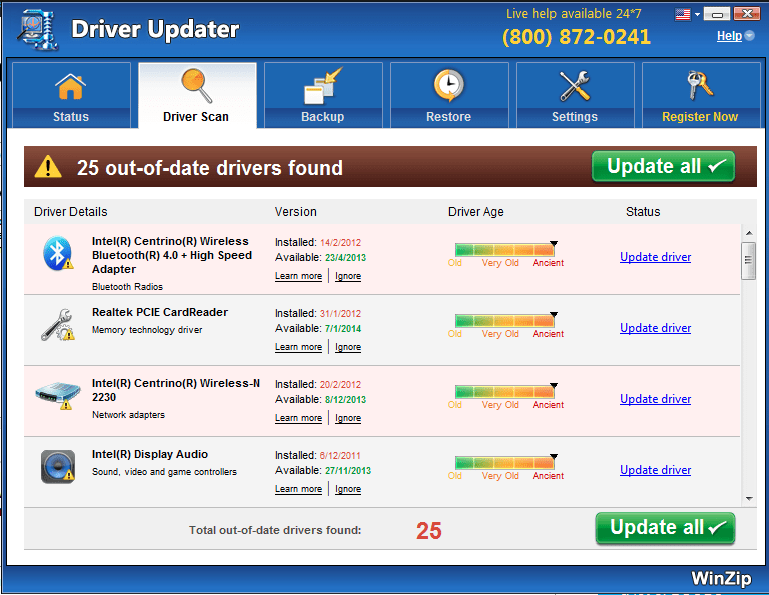
Avoid Third-Party Driver Update Software
You might see ads for driver update tools online, but it’s best to avoid them. Many of these programs can cause long-term issues, and come with unnecessary software, or even malware. Freeware download sites are also risky and can harm your system if the drivers are not from a trusted source.
The safest way to update drivers is to use official manufacturer websites or Windows Update. These methods ensure you get secure and compatible drivers tailored for your hardware.
How to Update Drivers from Manufacturer Websites
The most reliable method for updating your drivers is directly from the manufacturer. Here’s how:
- Find Out What Needs Updating: Identify the specific hardware component, like your graphics card, audio device, or network adapter.
- Go to the Manufacturer’s Website: Popular manufacturers include:
- HP
- Dell
- NVIDIA
- AMD (via the Catalyst Control Center)
- Realtek
- Use Auto-Detection Tools: Most manufacturer websites offer tools that scan your system to find the right driver. For example, NVIDIA’s website can detect and recommend the proper graphics driver for your PC.
- Download and Install the Driver: Follow the instructions to download and install the latest version.
How to Update Drivers on Your Windows Computer Using Windows Update
If you prefer an automated method, Windows Update can handle most driver updates for you. Here’s how:
- Open Windows Update:
- On Windows 10 and 11, go to Settings > Update & Security > Windows Update.
- Check for Updates: Click "Check for updates" to let Windows search for driver updates.
- Install Updates: If driver updates are available, Windows will download and install them automatically.
Why Use Windows Update?
- Automatic Updates: Windows 10 and newer versions are proactive about keeping drivers current. When you connect new hardware, Windows automatically installs the latest driver.
- Safe and Verified: Drivers from Windows Update are checked and approved by Microsoft, reducing the risk of malware or compatibility problems.


Best Practices for Updating Drivers
To keep your computer running smoothly, follow these tips:
- Stick to Trusted Sources: Always get drivers from the manufacturer’s website or Windows Update.
- Avoid Driver Update Tools: Third-party tools can create more problems than they solve.
- Check Regularly: Periodically check for updates, especially after adding new hardware or software.
- Backup First: Before installing a new driver, create a system restore point just in case.
Now that you know how to update drivers on your Windows computer, you can keep your system performing at its best. Regular driver updates ensure your hardware stays optimized and ready for the latest software and technologies.Here is some more to read: Malware Tip
Dear Readers and Viewers of Lexington PC Clinic,
The computer is my passion and it is my profession too. I troubleshoot and computer repair every day. I write a blog and do YouTube videos on weekends in my workshop. This
Computer Repair blog is for me to educate everyone on current computer issues that I come across while troubleshooting, such as repair Samsung Galaxy screen, repair MacBook Pro, MacBook Air, iPhone, Galaxy, Windows laptops, Virtual box, replacing hard drives, adding memory, disassembling/teardown of smart phones, laptops, iPads, Surface computer and phone scam.
I blog about and post YouTube videos so you can troubleshoot simple computer problems for yourselves.*
Check out my YouTube channel at: https://www.youtube.com/c/Lexingtonpcclinic for my viewers.
No problem is too small or too big. Ask me via email at lpc@lexingtonpcclinic.com leave a comment on my page. Or ask me on my Facebook page: http://www.facebook.com/LPC247.
I try to answer all questions on the weekends. Like and subscribe to my YouTube channel and Facebook page for updated contents.
Thank you
Keep reading and keep watching videos.
Lexington Pc Clinic
NOTE:
*Self-diagnosis of computer problems or following videos and/or general advice is at your own risk. Lexington Pc Clinic is not responsible for any damage or data loss.
Recent Comments